
~—Cost: —
AI Avatar Generator
Create talking avatar videos from an image, script, or voice track with AvatarCraft AI. This page works as the category-level entry that routes users into the right avatar workflow, role page, or use-case path.
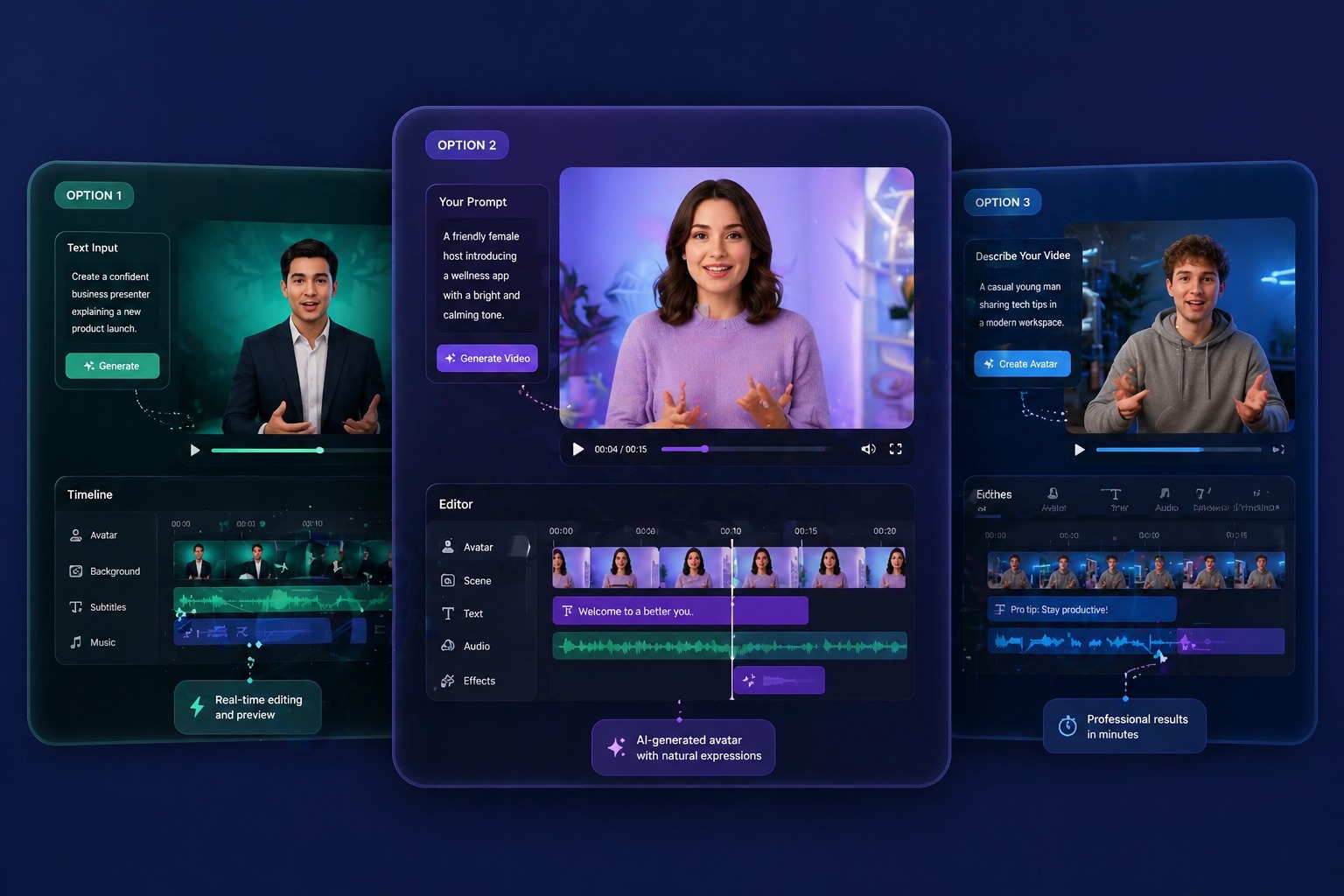
How AvatarCraft AI Works as the Parent AI Avatar Category
Workflow Over Novelty
An AI avatar generator is most valuable when it helps teams produce repeated video outputs, not just isolated avatar effects. AvatarCraft AI turns image, text, and audio inputs into a workflow that fits demos, promotions, training, and structured communication better than repeated filming.
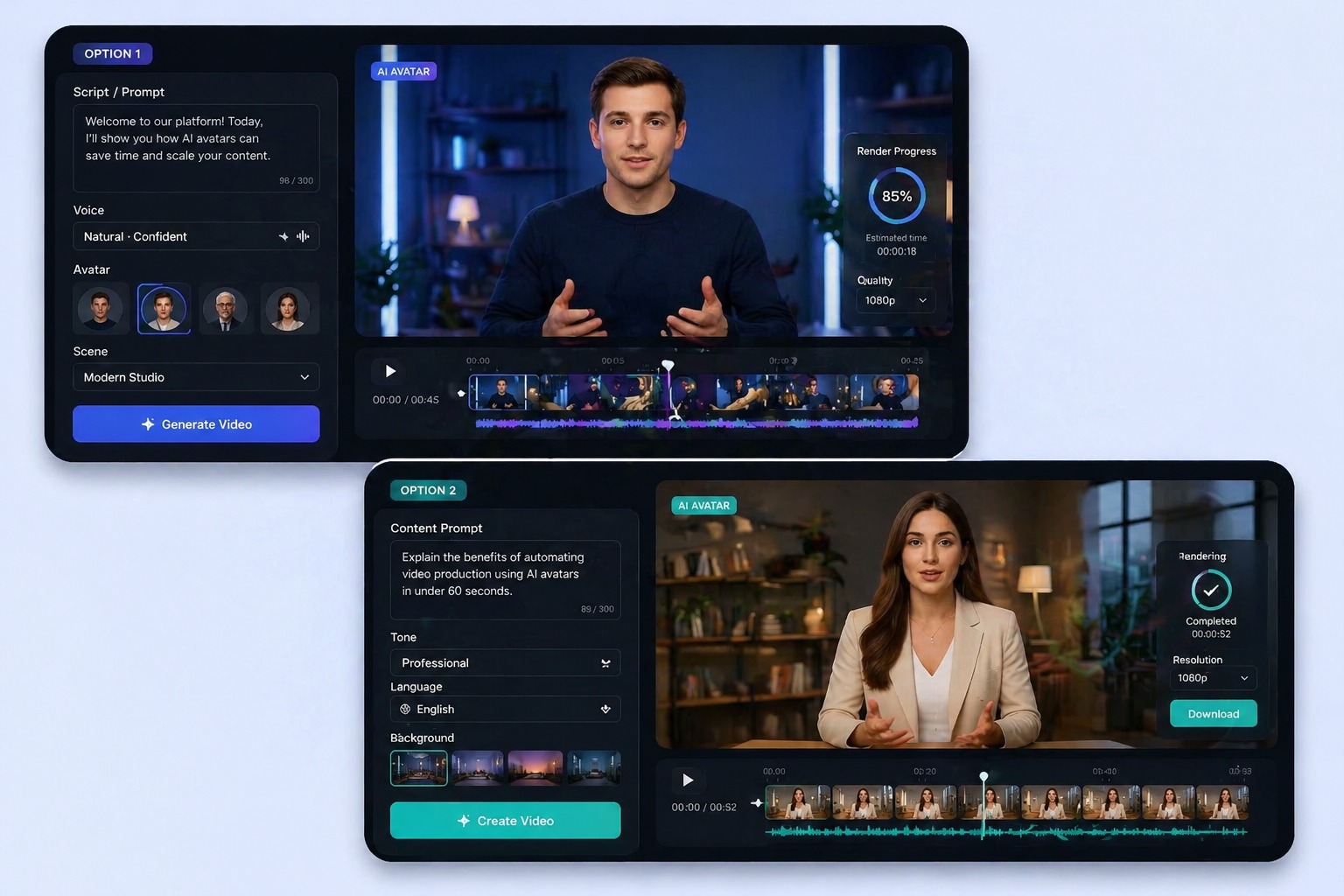
Image to Avatar Video
Start from a portrait and turn it into a speaking video without setting up a camera. This path works best when the image is well-lit, front-facing, and meant to support a stable presenter format rather than expressive character acting.
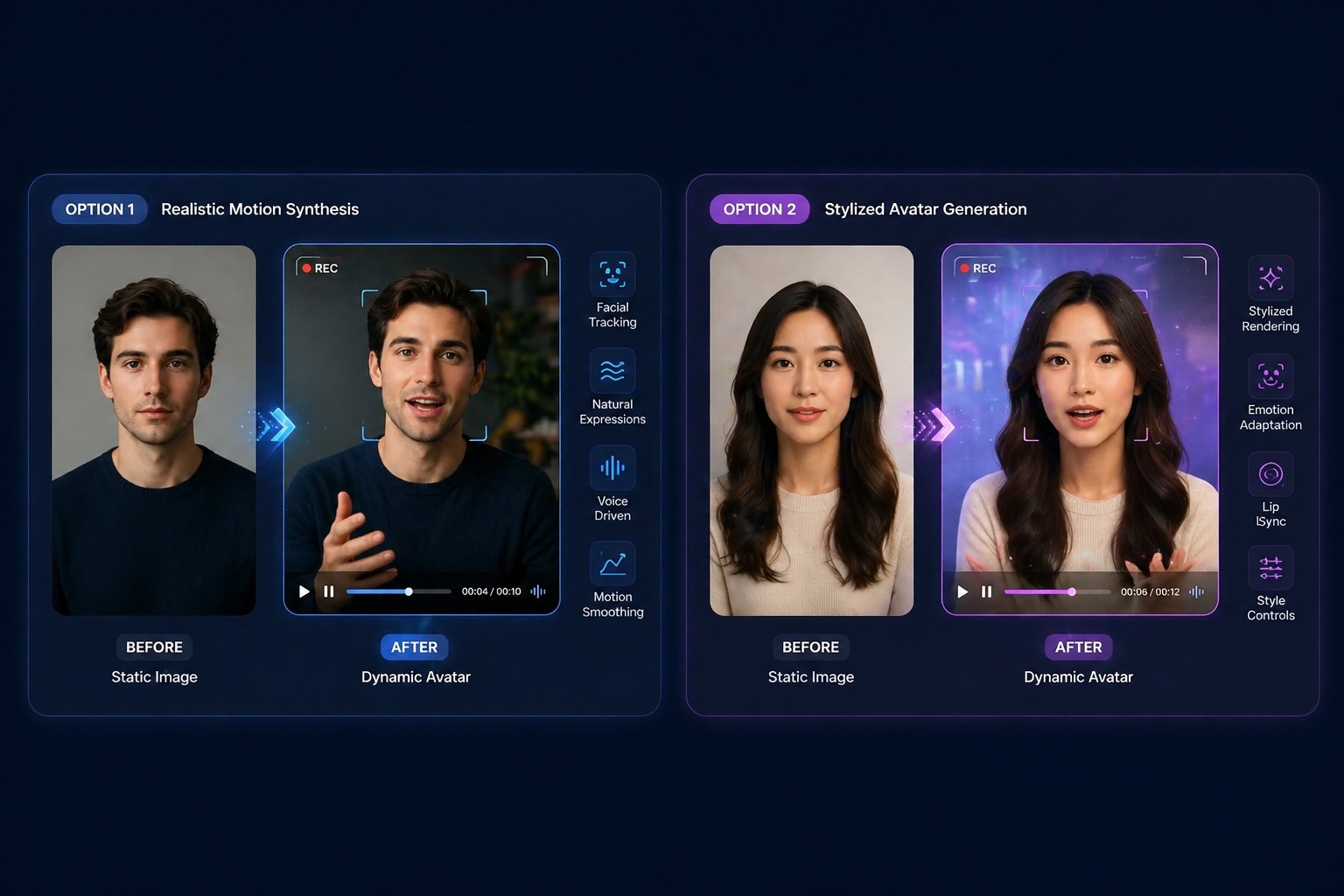
Text to Avatar Video
Script-first teams can convert approved copy into avatar video output. That makes campaigns, onboarding, lessons, and feature explainers easier to update because the revision happens in the script instead of another recording session.
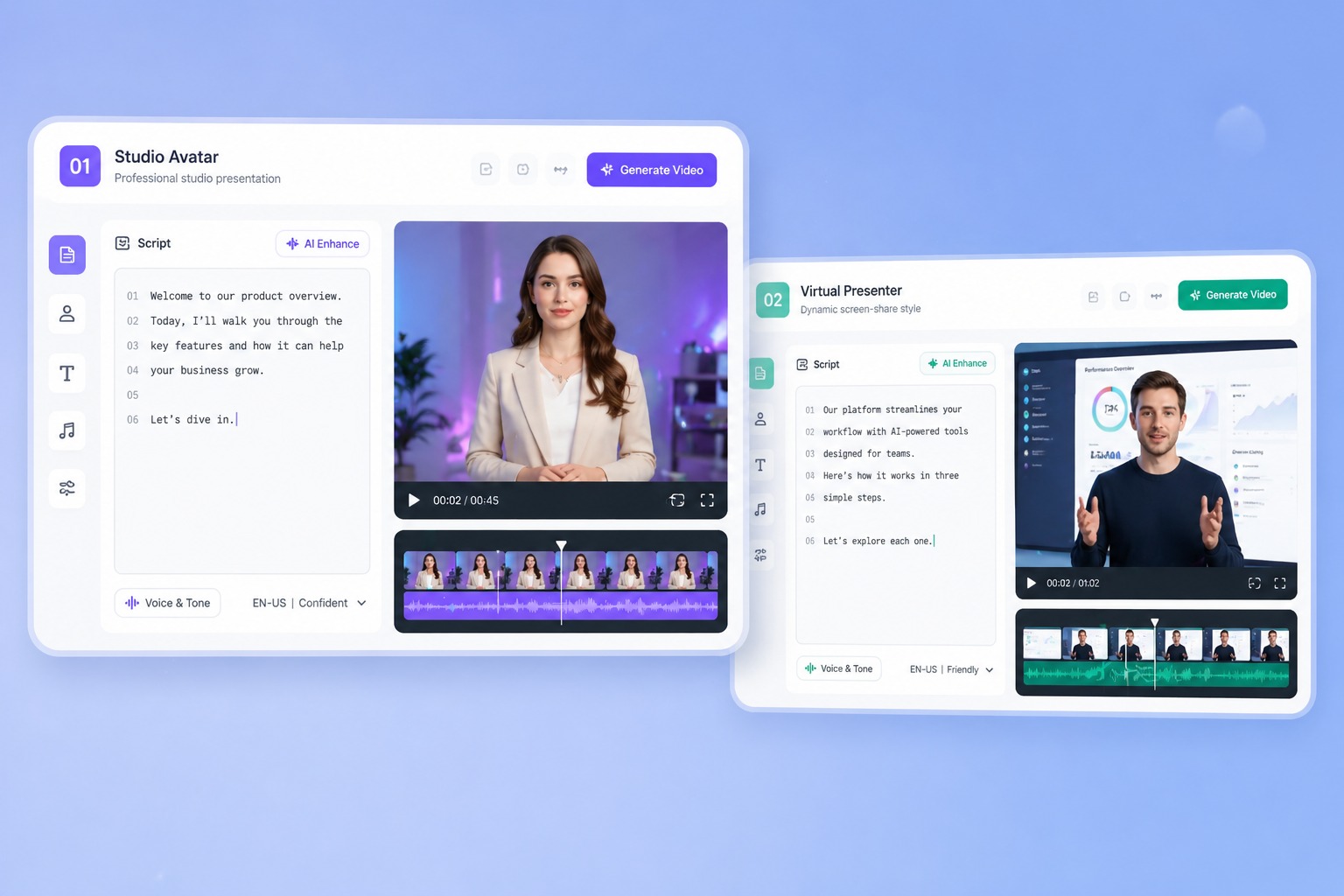
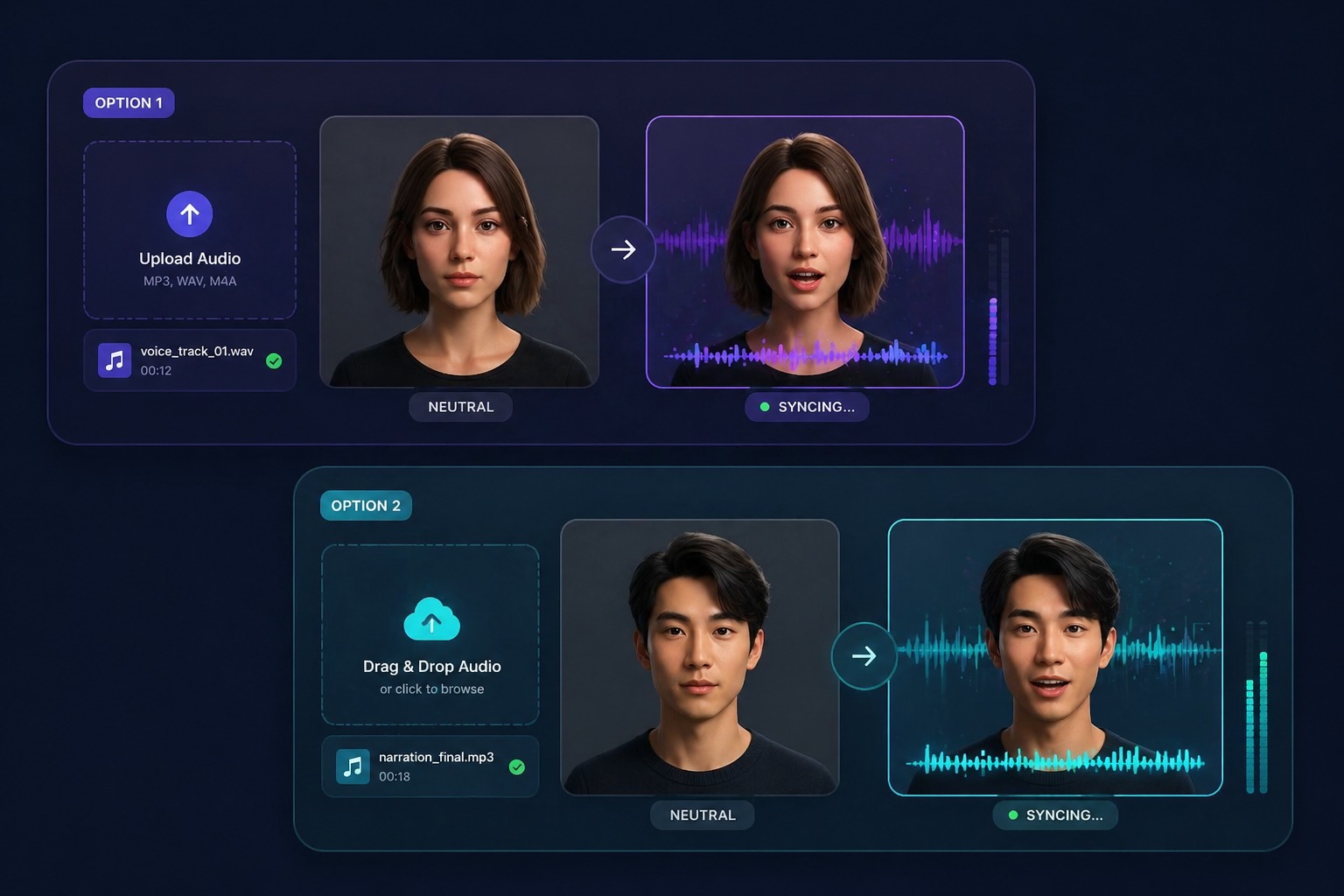
Audio-Driven Avatars
When the spoken delivery already exists, AvatarCraft AI can sync the avatar directly to that voice. This path is strongest when pacing, tone, or pronunciation already carry part of the communication value.
Cluster Paths
Where This AI Avatar Category Sends Users Next
This page sits at the top of the current page cluster. The main internal-link flow should move from category entry into talking-avatar for workflow detail, then into role pages when the delivery pattern becomes specialized.
Tutor Role Page
Go to the tutor page when the avatar workflow depends on recap logic, homework help, or one-to-one explanation.
Instructor Role Page
Go to the instructor page when the real production job is SOP explanation, onboarding, or internal process guidance.
Coach Role Page
Go to the coach page when accountability, motivation, or between-session reinforcement changes how the message should be delivered.
Evaluation Factors
What Teams Check Before Choosing an AI Avatar Category
Fast versioning
Teams need to revise copy and publish another avatar video without rebuilding production from scratch each time.
Believable lip sync
The sync does not need perfect realism. It needs to stay believable enough for explainers, demos, and promos to remain watchable.
Flexible inputs
Image, text, and audio inputs make the workflow fit how different teams already create content.
Simple setup
Non-creators adopt avatar workflows faster when they do not need complex onboarding.
Reusable assets
Avatar libraries and repeatable formats help teams scale content creation.
Clear boundaries
The strongest fit is structured communication. It is a weaker fit for cinematic storytelling, dramatic acting, and scene-heavy production.
How to Create an Avatar Video with AvatarCraft AI
Simple steps to create avatar videos faster
01
Choose your starting asset
Begin with the asset you already have, whether that is a portrait image, a written script, or an existing voice track.
02
Generate the speaking video
Add text or audio, let the system handle voice generation when needed, and sync the avatar through the lip sync pipeline.
03
Iterate by channel
Refine the pacing and message length for the exact use case, such as demos, social content, training, or course modules.
Why This Page Sits Above Talking Avatar and Role Pages
- Publishing becomes faster: Content can move from approved message to avatar video without another shoot.
- Scripts become reusable video assets: A text-first workflow makes versioning easier across campaigns and updates.
- The format fits non-creators: The category page helps users choose the right downstream page before they choose the final workflow.
Publishing becomes faster
That helps teams keep demos, explainers, and promos current with less production overhead.
Scripts become reusable video assets
Teams can revise the message where the change begins instead of rebuilding the whole recording process.
The format fits non-creators
Use this page when the user still needs a category-level overview. Then route into talking-avatar for workflow detail or into tutor, instructor, and coach pages when the production logic becomes role-specific.
Common questions about using AvatarCraft AI to create scalable talking avatar videos for marketing, education, and business communication.
AI Avatar Generator FAQ
What is an AI avatar generator?
An AI avatar generator creates video content where an avatar or portrait appears to speak based on text or audio input. It is especially useful for structured communication tasks such as demos, training clips, explainers, and short promotional videos that need to be updated often.
What is an AI avatar video generator best for?
The strongest use cases are repeatable communication formats like onboarding videos, course intros, social promos, product explainers, and internal updates. These are jobs where publishing speed and easy revisions matter more than traditional camera-based production.
Can I create an avatar video from a single image?
Yes. Starting from a portrait image is one of the easiest workflows because it gives you a visible presenter format without needing to record live footage. This works best for direct, structured messages where clarity matters more than expressive acting.
Why use text to avatar video instead of filming?
Text-first workflows are easier to maintain when the message changes often. If pricing, product details, or lesson wording needs to be updated, editing the script is much faster than scheduling and recording another on-camera version.
When should I use audio-driven avatar generation?
Audio input is a strong choice when the original voice carries useful pacing, tone, or pronunciation. It works well for repurposing narration, voice notes, lecture audio, and spoken updates into more visible video content.
Is an AI avatar generator only for creators?
No. Marketers, educators, businesses, agencies, and product teams all benefit if they need repeatable presenter-style content that can be updated quickly and published across several channels.
What are the limits of AI avatar workflows?
They are strongest for explainers, demos, promos, lessons, and other message-led formats. They are less suitable when the project depends on high-expression performance, cinematic direction, or rich scene interaction.
How does AvatarCraft AI fit this category?
AvatarCraft AI supports image, text, and audio inputs in one workflow so teams can choose the shortest path from idea to avatar video. That makes it useful as a practical video system, not just a novelty avatar effect.
When should I move from this category page into another page?
Move into talking-avatar when you want more detail on spokesperson workflow and input-path selection. Move into tutor, instructor, or coach pages when the real question is no longer the avatar category itself, but how the workflow changes for education support, internal training, or coaching reinforcement.