
~—Cost: —
Talking Avatar
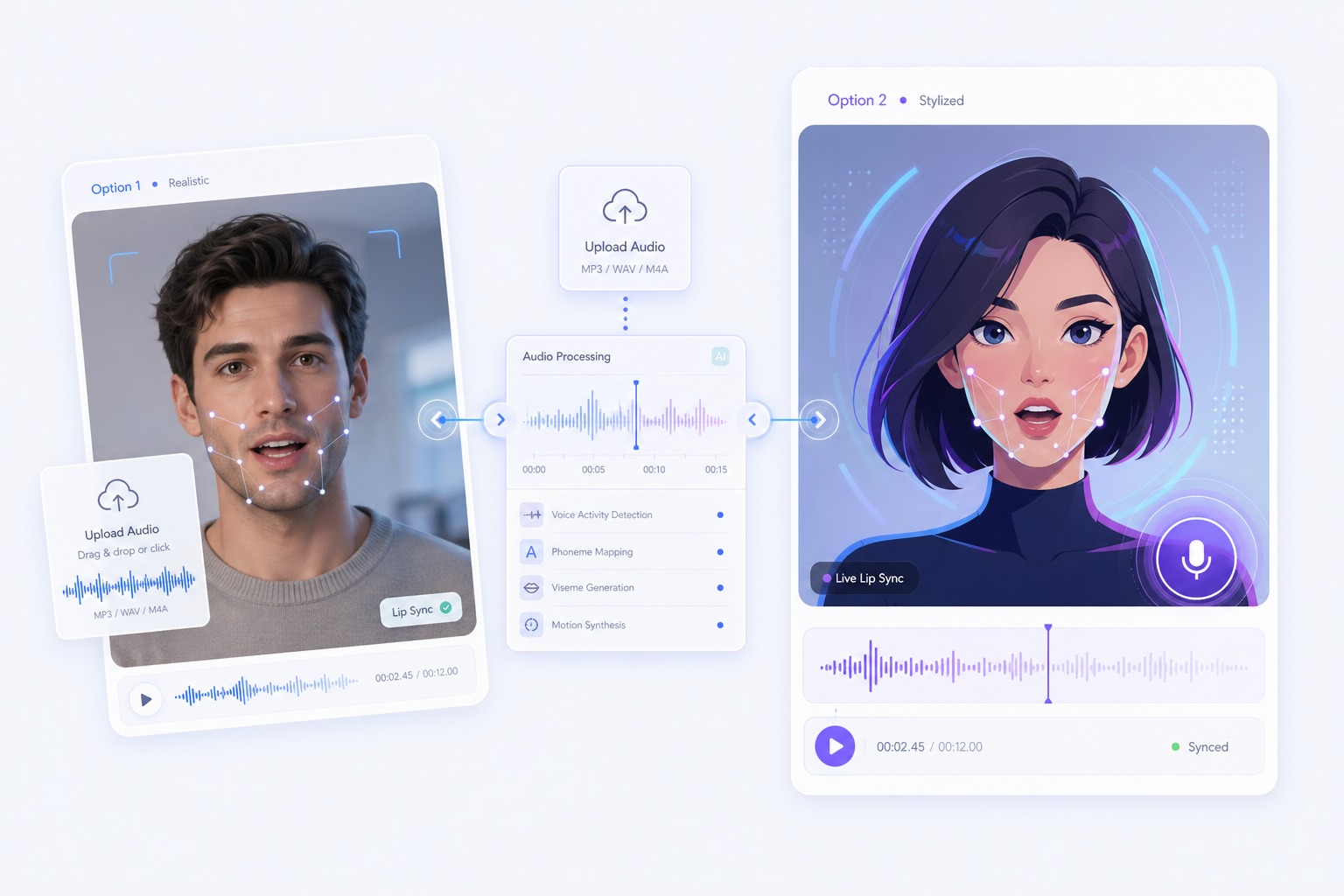
A talking avatar is a portrait that speaks. Give AvatarCraft AI one photo and a voice (typed text, an uploaded file, or a recording) and it generates a lip-synced video of that face delivering your words. Pick one of 160+ preset avatars or upload your own picture.
How to Create a Talking Avatar from One Photo
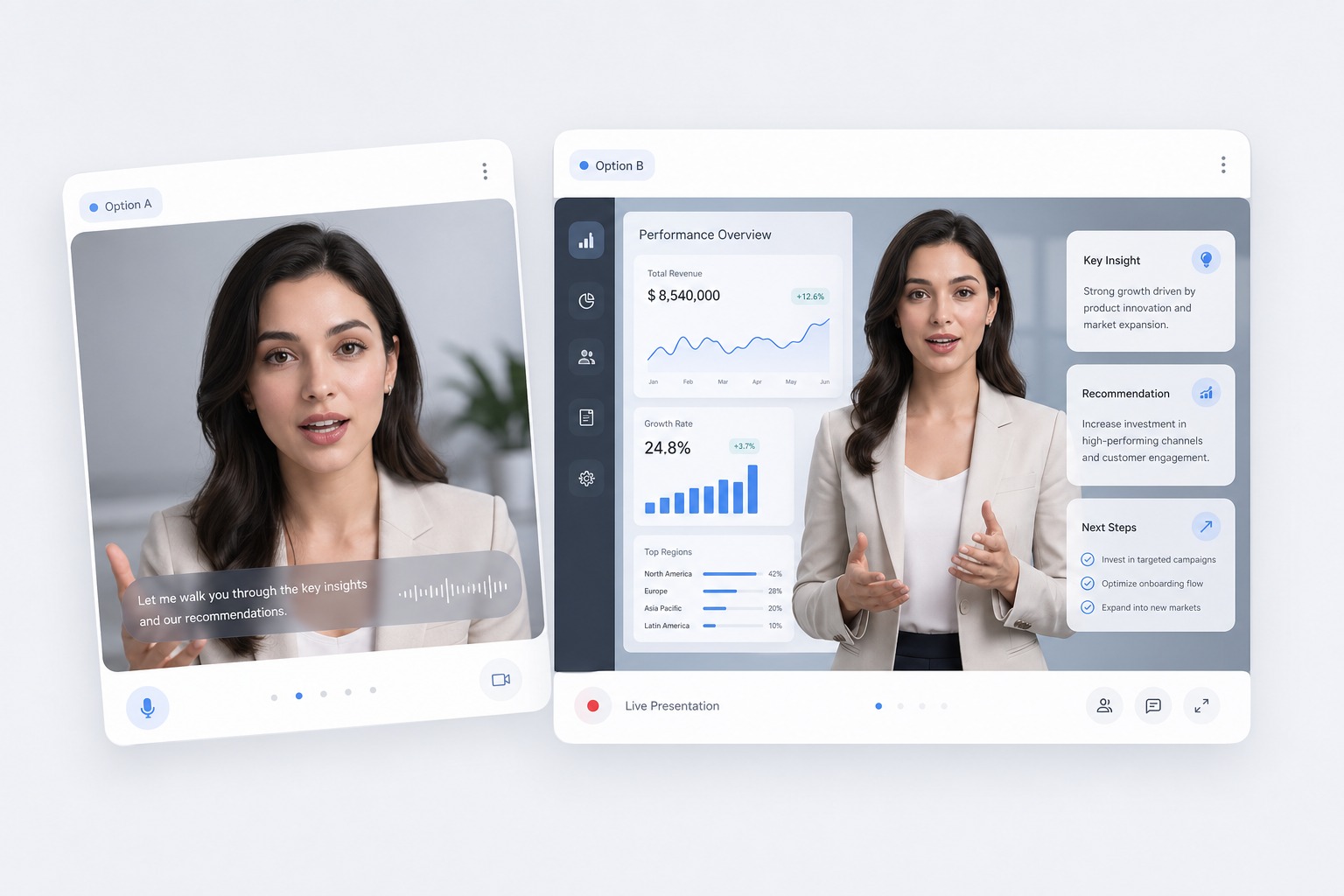
Choose a preset or upload a photo
Start from 160+ preset avatars in nine categories (ads, tech, education, casual, news, babies, animals, singing, and Christmas) or upload your own JPG, PNG, or WebP up to 10MB. One clear, front-facing face with a neutral expression gives the most natural lip sync.
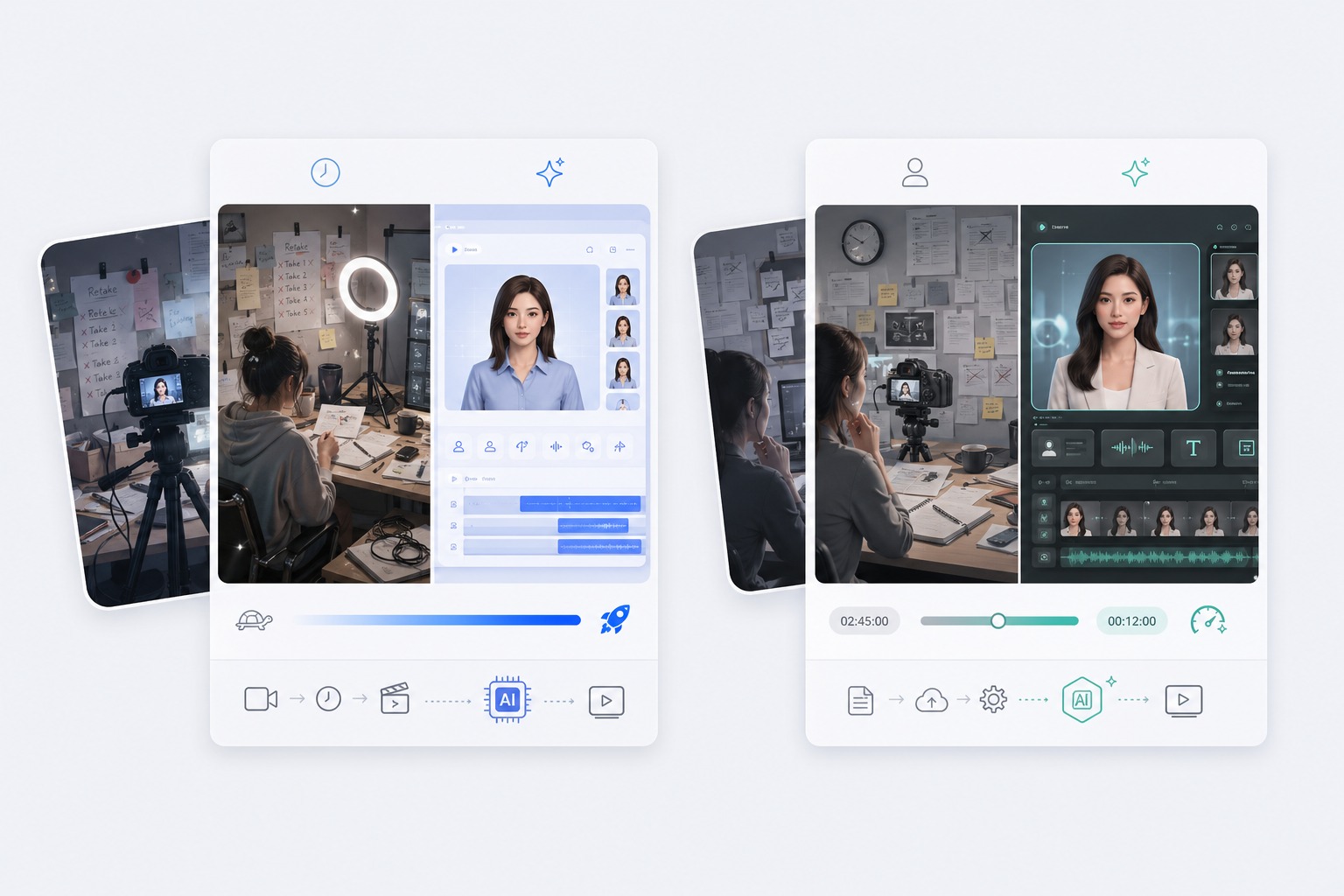
Type a script and pick from 330+ voices
Write up to 2,000 characters and choose a voice from 330+ in 20+ languages. Every voice has a free preview, and text to speech costs 1 credit per 200 characters.
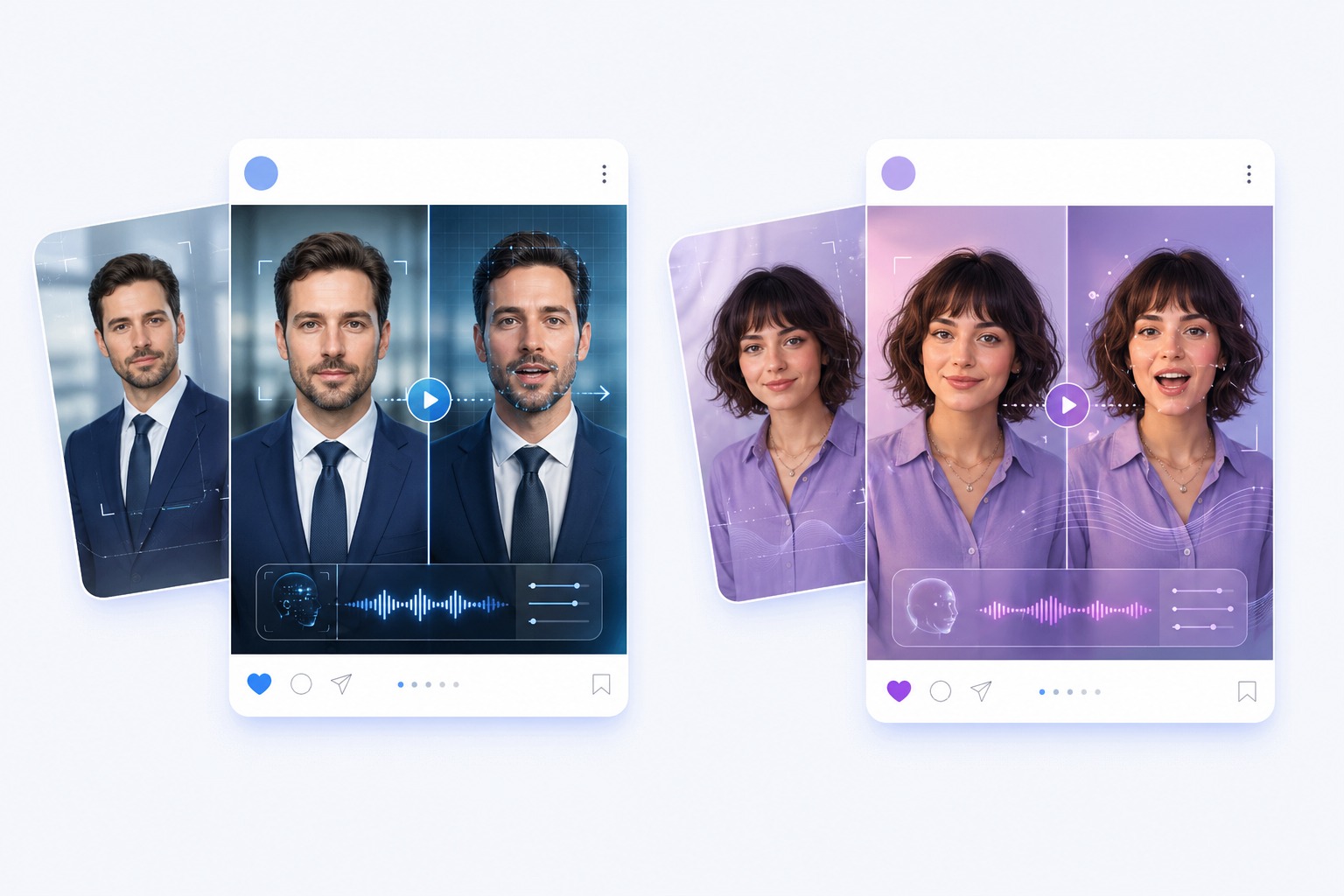
Or use your own voice
Upload an MP3, WAV, or M4A file up to 50MB, or record straight from your browser. Your own recording keeps your pacing, tone, and pronunciation.
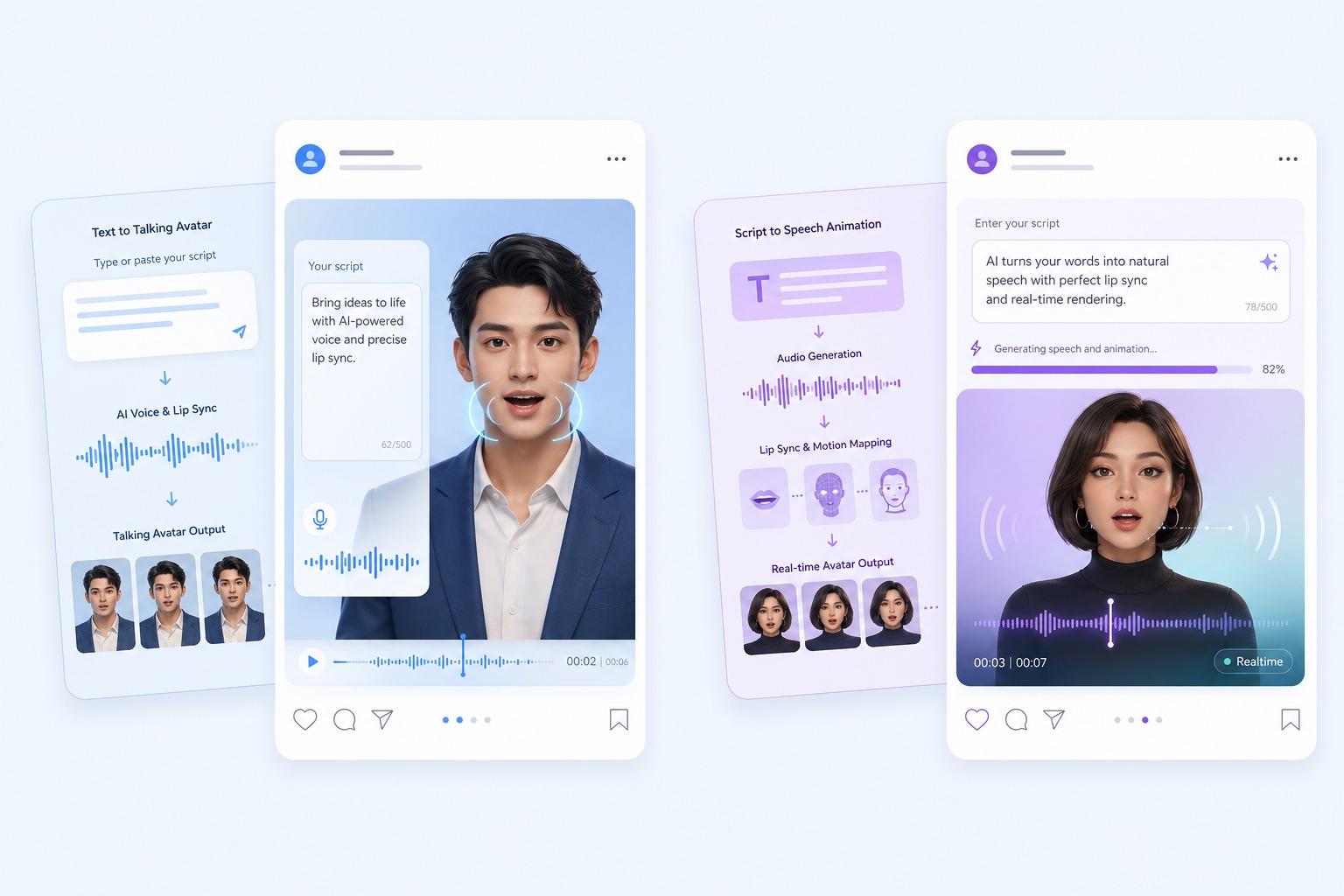
Generate, review, and download
Choose 540p or 720p and generate. A 10-second clip takes about three minutes at 540p. Watch the result in your history, then download the video.
Use Cases
Talking Avatar Use Cases
Anywhere a face helps the message land and filming one is not practical.
Training and onboarding
Turn a process update or a welcome message into a short video without booking a recording session.
Social clips
Post a talking character, mascot, or pet that speaks your caption, made from a single image.
Lessons and explainers
Give a lesson summary or a quick tip a consistent on-screen teacher.
What to know before you generate
Talking Avatar Limits and Pricing
Audio length
Each video takes 3 to 60 seconds of audio. The free plan allows up to 20 seconds.
Resolution and price
Video costs 1 credit per second at 540p. 720p costs 2 credits per second and needs a paid plan.
Free to start
New accounts get 30 free credits, enough for one 20-second talking avatar at 540p.
Photo input
JPG, PNG, or WebP up to 10MB with one clear face. Photos, illustrations, pets, and cartoon characters all work.
Voice input
Text to speech with 330+ voices, an MP3, WAV, or M4A file up to 50MB, or a recording made in your browser.
Generation time
About three minutes for a 10-second clip at 540p, and about six minutes at 720p.
How to Make a Talking Avatar
Three steps: face, voice, generate
01
Choose your avatar
Pick a preset avatar or upload a photo with one clear, front-facing face.
02
Add the voice
Type a script and pick a voice, upload an audio file, or record yourself in the browser.
03
Generate and download
Choose 540p or 720p, generate, check the lip sync, and download the video.
Why Use a Talking Avatar Instead of Filming
- Change the words, keep the face: When the script changes, generate the video again instead of reshooting it.
- Any face you have the rights to: Photos, illustrations, pets, and cartoon characters work when one face is clear.
- Your voice, or one of 330+: Use text to speech, your own recording, or a song.
Change the words, keep the face
The same avatar can deliver an updated feature list, a corrected price, or a script you have translated yourself.
Any face you have the rights to
Preset avatars cover presenters, news anchors, babies, animals, singers, and seasonal characters.
Your voice, or one of 330+
When the audio is music, the AI singing photo generator is built for singing performances.
Common questions about creating a talking avatar with AvatarCraft AI.
Talking Avatar FAQ
What is a talking avatar?
A talking avatar, sometimes called a speaking avatar, is a still portrait turned into a video where the face speaks the audio you give it. AvatarCraft AI animates the mouth and face from one photo, using text to speech, an uploaded audio file, or a recording.
How do I create a talking avatar?
In the talking avatar creator, choose a preset avatar or upload a photo, add the voice by typing a script, uploading audio, or recording, then generate. When the video is ready, review it in your history and download it.
Can I make a talking avatar from my own photo?
Yes. Upload a JPG, PNG, or WebP up to 10MB with one clear, front-facing face. Only use photos you own or have permission to use, and do not impersonate a real person without consent.
Is the AI talking avatar generator free?
You can start free: new accounts get 30 credits, enough for one 20-second video at 540p. After that, video costs 1 credit per second at 540p or 2 at 720p, and text to speech adds 1 credit per 200 characters.
How long can a talking avatar video be?
Each video uses 3 to 60 seconds of audio. The free plan allows up to 20 seconds per video.
Which voices and languages can it speak?
Text to speech offers 330+ voices in 20+ languages, each with a free preview. You can also upload or record audio in any language, and the avatar follows it.
Can a talking avatar hold a live conversation?
No. AvatarCraft AI generates a video from the audio you provide. It is not a real-time or interactive avatar that listens and answers questions.
Can I control the emotion, speed, or gestures?
Not with separate controls. The delivery follows the audio, so record it yourself for a specific tone, or make the audio on the AI Text to Speech page with an Expressive voice, where you can describe the tone and pace in words. There are no gesture controls.
What can't a talking avatar do?
Each video animates one face. It doesn't translate your script or generate videos in batches. To speak in a cloned voice, create the audio on the AI Text to Speech page (Clone tab) first, then use it here. For new audio on an existing video, use the lip sync tool instead.